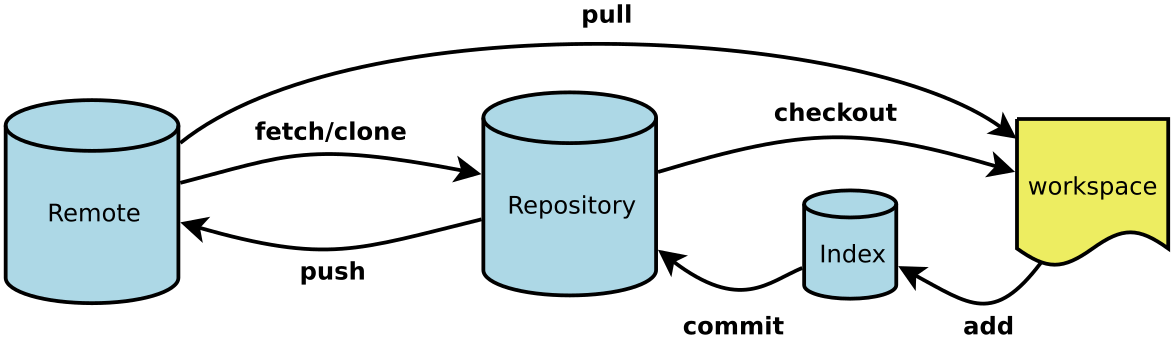
# Check Git version information git -v # View Git-related commands git -h # View current Git configuration git config -l
Set User Signature
💡 The purpose of the signature is to distinguish the identity of different operators. The user signature information can be seen in the commit information of each version, confirming who made the commit. You must set up the user signature when installing Git for the first time, otherwise, you cannot commit code.
📌 The user signature set here has no relation to the account you will use to log in to GitHub (or other code hosting platforms).
1 2 3 4 5 6 7 8 9 10 11 12
# Query the username used by Git. --global means global, without --global means querying only in the current project. git config --global user.name # Query the email used by Git git config --global user.email
# Globally configure username. --global means global, without --global means configuring only in the current project. git config --global user.name username # Globally configure email git config --global user.email email
# Check if the configured user signature is effective cat ~/.gitconfig
Basic Operations
Create a New Repository
1 2 3 4 5
# Create a new Git repository in the current directory, generating a .git folder $ git init
# Create a new directory and initialize it as a Git repository $ git init [project-name]
# View the status of the local repository $ git status
# Add the specified files to the staging area $ git add [file1] [file2] ...
# Add the specified directory to the staging area, including subdirectories $ git add [dir]
# Add all changes in the working directory to the staging area, including modifications, new files, and deletions $ git add . $ git add * $ git add -A $ git add --all
# Reset the specified file in the staging area to match the last commit, but the working directory remains unchanged $ git reset [file]
# Reset the staging area and working directory to match the last commit $ git reset --hard
# Remove the specified file from tracking, but keep it in the local repository folder $ git rm --cached [file]
# Rename a file and add this change to the staging area $ git mv [file-original] [file-renamed]
# Undo changes to a file in the working directory (use with caution) $ git checkout -- [file]
Code Commit
1
2
3
4
5
6
7
8
9
10
11
12
# Commit files from the staging area to the local repository and add a description
$ git commit -m "<commit message>"

# Commit specific files from the staging area to the repository
$ git commit [file1] [file2] ... -m [message]

# Replace the previous commit with a new one
# If there are no new changes, use this to rewrite the commit message of the last commit
$ git commit --amend -m [message]

# Redo the last commit and include changes to specified files
$ git commit --amend [file1] [file2] ..
# Switch to an existing branch, e.g., `git checkout main` $ git checkout <branch-name>
# Merge a specified branch into the current branch (e.g., merge `dev` into `main`) # Before merging, it’s recommended to pull the latest changes with `git pull origin main` $ git merge dev
# Merge a specific commit into the current branch $ git cherry-pick <commit ID>
# Create and switch to a specified branch, retaining all commit history # Equivalent to running `git branch` and `git checkout` consecutively $ git checkout -b <branch-name>
# Create and switch to a specified branch, but discard all commit history $ git checkout --orphan <branch-name>
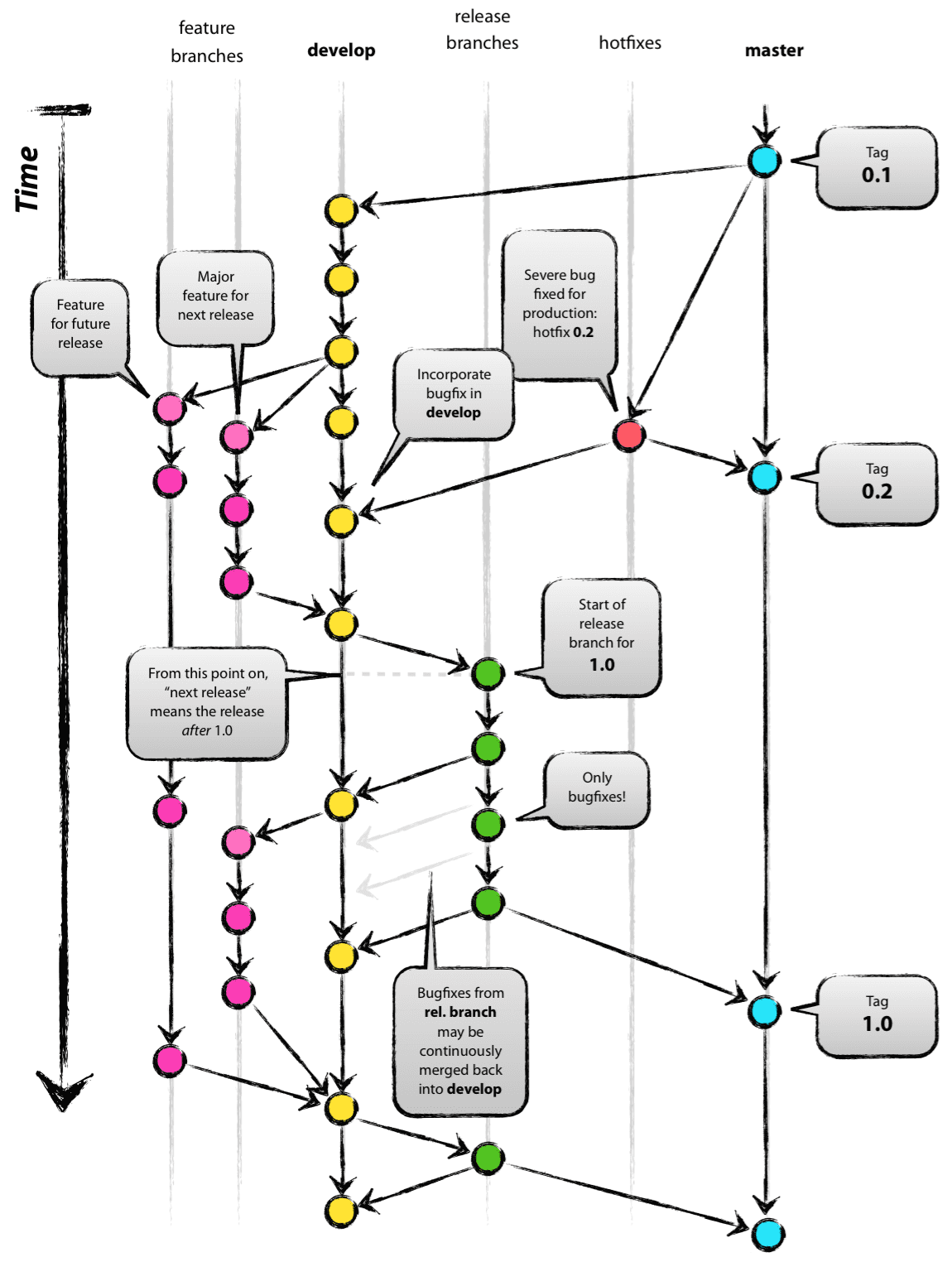
When working with branches, it’s important to follow naming conventions. Common branch names include:
main: Main branch
dev: Development branch
hotfix: For urgent bug fixes to the main branch, typically named by issue number (e.g., hotfix/#1), making it easier to merge with the main branch
feature: Named by feature, e.g., feature/add_search
release: Used for releases
Merge Conflicts
Cause
When merging branches, if there are two completely different changes in the same location of the same file, Git cannot decide which version to keep and requires a manual resolution of the conflict.
Solution
Edit the file with the conflict and remove the special symbols to decide which content to keep.
Special symbols:
1
2
3
4
<<<<<<< HEAD - Code from the current branch
=======
- Code from the merged branch
>>>>>>> - Name of the merged branch
Stage the resolved file.
Commit the changes (Note: Do not include the filename when running the git commit command in this case).
# List all existing remote repositories
$ git remote

# List remote repositories in detail, showing URL after the alias
$ git remote -v

# Add a remote repository, usually aliased as origin
$ git remote add <remote-alias> <remote-URL>

# Rename a remote repository alias
$ git remote rename <old-alias> <new-alias>

# Remove a remote repository alias
$ git remote remove <remote-alias>

# Modify the URL of a remote repository
$ git remote set-url <remote-alias> <new-URL>

# Fetch all branches from the remote repository to the local machine
$ git fetch <remote-alias>

# Fetch a specific branch from the remote repository
$ git fetch <remote-alias> <branch-name>

# Merge the fetched branch into the current branch
$ git merge <branch-name>

# Fetch and merge the latest changes from the remote repository (equal to fetch + merge)
$ git pull <remote-alias> <remote-branch-name>

# Push a local branch to the specified branch on the remote repository
$ git push <remote-alias> <local-branch-name>:<remote-branch-name>

# After using the -u option once, future `git push` commands can be used without specifying the remote alias and local branch.
$ git push -u origin main

# Delete a specific branch from the remote repository
$ git push <remote-alias> :<remote-branch-name>
$ git push <remote-alias> --delete <remote-branch-name>

# Clone a remote repository to the current local directory
$ git clone <remote-URL>

# Clone to a specified local directory
$ git clone <remote-URL> <local-directory>

# Clone a specific branch; the default is the main branch
$ git clone <remote-URL> -b <branch-name> <local-directory>
# First-time Git installation on the server and connecting to GitHub via SSH $ sudo apt-get install git # For Ubuntu systems $ git config --global user.name "Your name here" $ git config --global user.email "[email protected]" $ ssh-keygen -t rsa -C "[email protected]" # Open the hidden .ssh/id_rsa.pub file, copy the SSH key # Add the SSH key to GitHub in Account Settings > Add SSH Key $ ssh -T [email protected] # On Aliyun servers, GitHub connections may be slow. Uncomment GSSAPIAuthentication no vim /etc/ssh/ssh_config
# When the code in the development branch (dev) is ready for production, merge it into the main branch $ git checkout dev $ git pull $ git checkout main $ git merge dev $ git push -u origin main
# When the master branch is updated, update the development branch (dev) $ git checkout main $ git pull $ git checkout dev $ git merge main $ git push -u origin dev
# Discard local changes and forcefully replace them with remote repository code $ git fetch --all $ git reset --hard origin/main $ git pull
# Implement small feature changes across multiple branches $ git checkout -b feature/add_search dev # Create two branches: feature and dev $ git add somefile # Make small changes $ git commit -m 'msg'# Commit the changes $ git checkout dev # Switch to the development branch $ git pull # Fetch remote changes and merge with local dev branch $ git merge feature/add_search # Merge feature/add_search into the dev branch $ git push # Push to the remote dev branch $ git checkout main # Switch to the main branch $ git merge dev # Merge dev into the main branch $ git push # Push to the remote main branch
Title: Git common commands
Author: LHT
Created at
: 2022-06-01 06:10:00
Link: https://blog.327774.xyz/2022/05/31/git/Git common commands/